In order to upload doctor' certificates in XS, some things need to be configured through the management. This article explains which steps to take. The article is divided in three parts:
Table of contents
1. Set configuration parameters
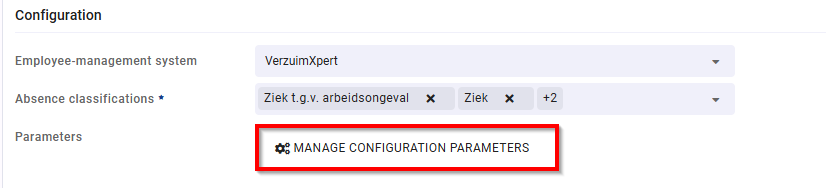
Go to Management > Organization > Edit > Manage configuration parameters
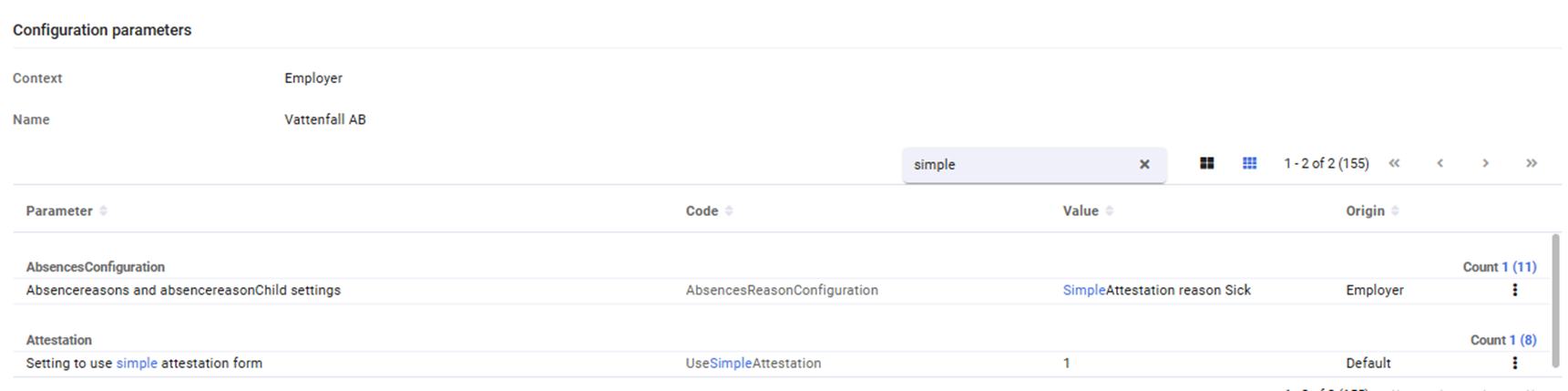
Find the parameters listed below and set the values as stated here:
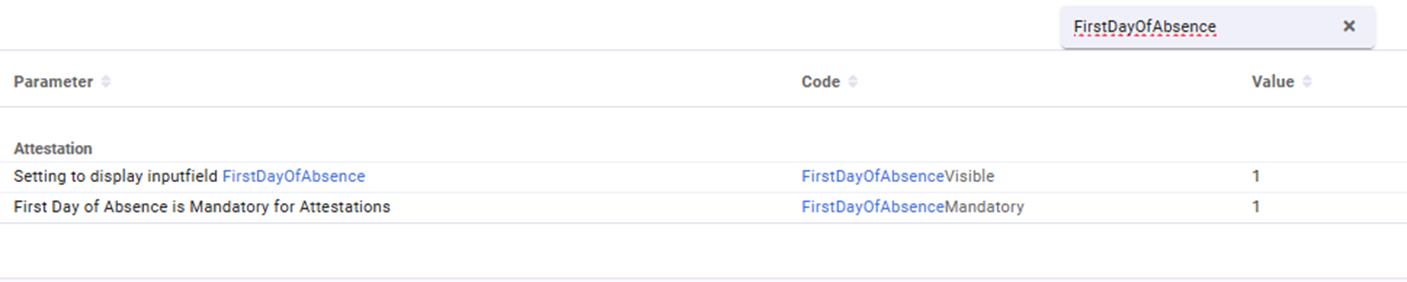
Ensure the 2 parameters below are set as true (if searching for FirstDayOfAbsence)
2. Set widgets and tabs
In order to upload a doctor's certificate, a widget needs to be added to the menu of the user. There are two different widgets you can use for this, depending on where you are in the application. The widgets can be added to different portals in the portal management. Go to management >application settings > portal configuration.
For the home menu, the action link SimpleAttestationSearch can be added:
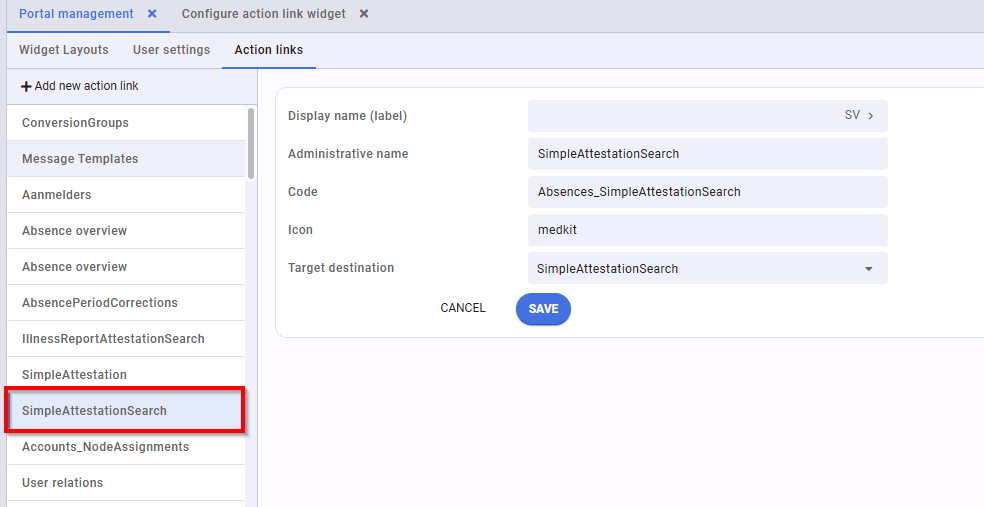
Through this action link you first have to select the employee for whom you want to upload the Doctor's Certificate:

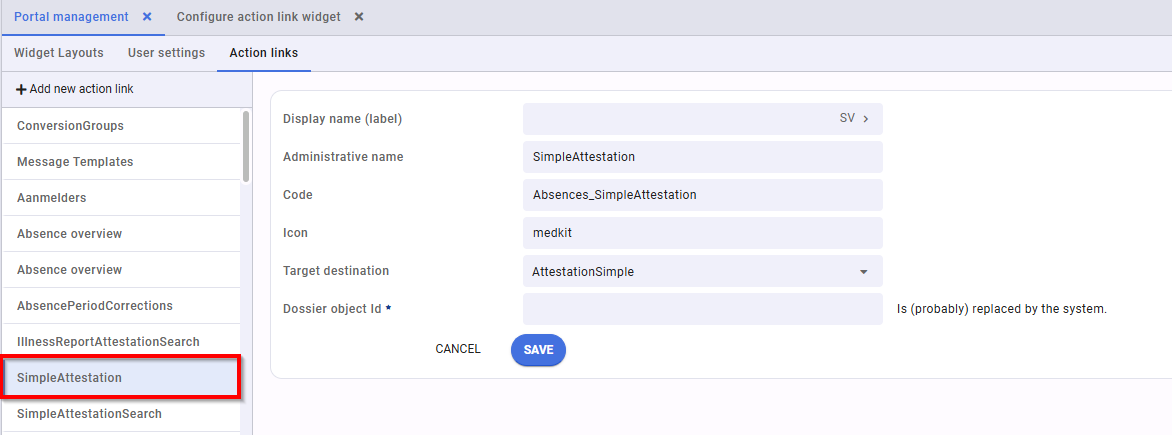
From the casefile, the action link SimpleAttestation can be added. This action link immediately opens the uploadpage of the doctor's certificate for the selected employee.
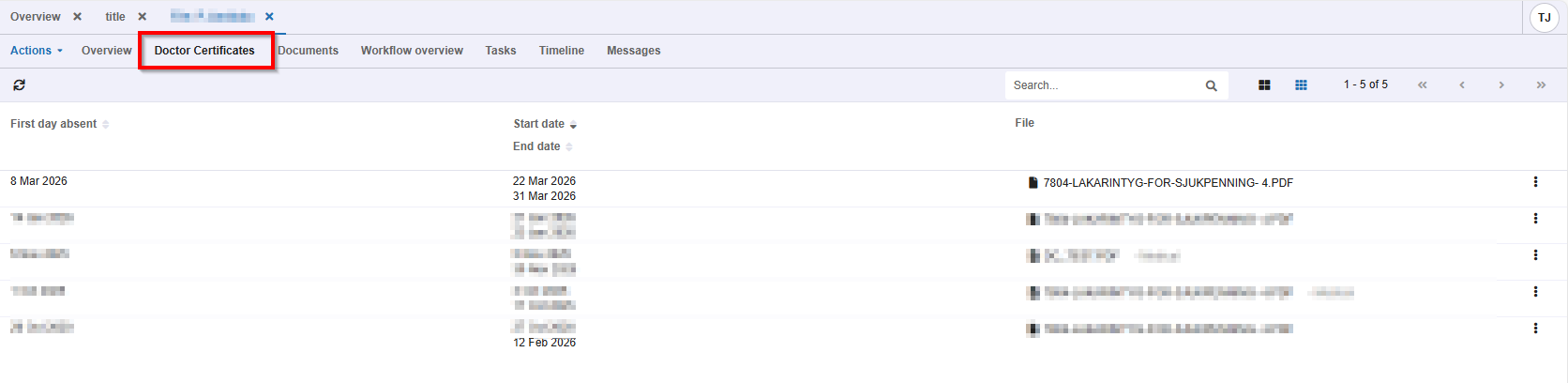
In order to view the uploaded certificates, a new tab has to be added in the casefile. This is the action link AttestationList (AttestationList) and will show an overview of all uploaded DC's for the employee.

3. Set Authorizations
In order to upload and view the Doctor's Certificates, a user needs to be authorized in the user administration. The authorizations can be found under Absences.
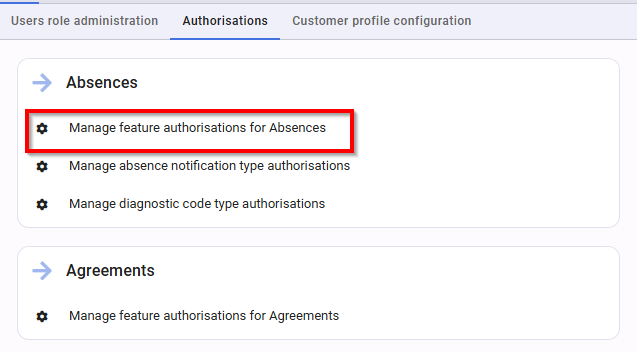
The authorizations listed below should be checked in order to view and add doctor's certificates.